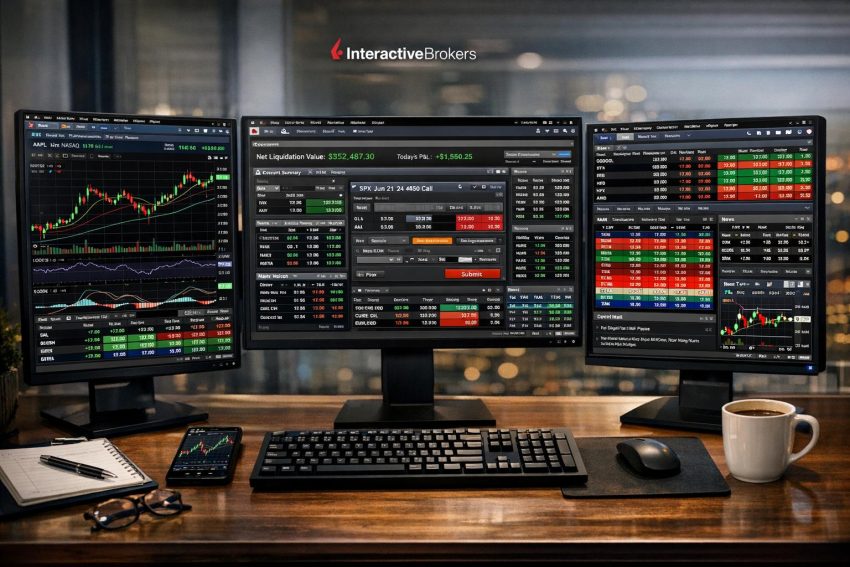
Interactive Brokers Trader Workstation, commonly called IBKR TWS or simply TWS, is the desktop trading platform offered by Interactive Brokers. It gives investors and traders access to multiple asset classes, advanced order instructions, market data, charting, research, portfolio monitoring, and account controls from one application.
TWS serves clients who need more control than a standard brokerage website usually provides. A trader can monitor several markets, build multi-leg options orders, inspect margin figures, route orders, study charts, and manage open positions without moving between separate applications. That breadth comes at a cost: the interface can feel crowded until the user has spent time configuring it.
The platform is available to eligible Interactive Brokers clients, though access to products and exchanges depends on account permissions, residence, financial profile, market-data subscriptions, and local rules. A button appearing in TWS does not necessarily mean every account can use the related product. Approval may be required before trading options, futures, foreign exchange, bonds, or other higher-risk instruments.
What Interactive Brokers Trader Workstation Is
TWS is a downloadable application for Windows, macOS, and Linux. It connects an Interactive Brokers account to the broker’s order-management, market-data, reporting, and risk systems. Users can search for securities, monitor quotes, submit orders, follow executions, review balances, and inspect portfolio exposure from the desktop.
The platform supports stocks, exchange-traded funds, options, futures, futures options, currencies, bonds, warrants, mutual funds, and other securities where available. Product access varies among countries and account types. Exchange membership rules, investor classification, and financial suitability checks may also affect what an account can trade.
TWS is commonly associated with active trading, but it is not reserved for day traders. A long-term investor may use it to place a bond order, compare option contracts, convert currency, or monitor a portfolio held in several denominations. Still, people making a few ordinary stock purchases each year may prefer the IBKR web portal or mobile app. TWS earns its keep when detailed order control and broader analytical tools are actually needed.
Interactive Brokers generally offers two main interface styles inside the application: Mosaic and Classic TWS. Mosaic uses linked panels arranged in workspaces, while Classic TWS relies more heavily on spreadsheet-like trading pages. Both connect to the same brokerage account. The better choice depends on how the user prefers to organize quotes, orders, charts, and account data.
Installing and Signing In to TWS
Clients should download Trader Workstation from the official Interactive Brokers website. Third-party download pages create an avoidable security risk and may distribute outdated or altered files. Installation requirements differ by operating system, and corporate computers may require administrator approval before the software can be installed.
Interactive Brokers may offer more than one software release channel. One version usually receives newer features sooner, while another places greater emphasis on release stability. The names and release schedules can change. Traders who rely on TWS for daily activity often test a new release before making it their regular trading installation.
After opening the application, the client signs in with the same account credentials used for other Interactive Brokers services. Authentication may require approval through the IBKR Mobile app or another accepted security method. The application can also ask whether the user wants to enter a live or simulated environment.
Live trading connects to the funded brokerage account. Orders placed and transmitted in this environment can create actual positions, fees, gains, and losses. Paper trading uses simulated money and provides a safer place to learn order entry and workspace controls.
Paper trading has practical value, but its fills should not be treated as proof that a strategy will work with real money. The simulation may not reproduce queue position, slippage, partial fills, borrowing availability, market impact, or rapidly changing liquidity. An options spread that fills neatly in simulation may behave rather differently during a fast live session. Markets have a habit of being less cooperative once actual money is involved.
Mosaic and Classic TWS Layouts
Mosaic Workspace
Mosaic arranges trading tools as linked panels. A standard workspace may contain a watchlist, chart, order-entry ticket, order monitor, portfolio panel, and news window. Selecting an instrument in one linked panel can update the others, reducing the need to enter the same symbol repeatedly.
Color grouping controls how panels communicate. If a watchlist and chart share a group color, clicking a stock in the watchlist changes the chart to that stock. The order-entry panel can be linked to the same group. This is convenient, but users should confirm the active contract before sending an order. A symbol selected for research can become the active order instrument with only a click.
Classic TWS
Classic TWS uses rows and columns that resemble a trading spreadsheet. Traders add instruments to quote pages, choose data columns, and create order rows directly below market quotes. It can display a large amount of information in a compact format, making it useful for users who monitor many contracts at once.
Classic TWS may look dated compared with newer brokerage interfaces, yet many experienced traders prefer its density and direct order workflow. Appearance matters less when a user needs to compare bids, asks, positions, unrealized profit and loss, and open orders without opening several panels.
Saving and Managing Workspaces
Workspaces can be arranged around different tasks. One tab might contain stock watchlists and daily charts, while another holds an option chain, volatility data, and strategy tools. A futures trader may create separate pages for equity index, energy, and interest-rate contracts.
A simpler layout is usually better at the start. Opening every available panel consumes screen space and computer resources without helping the user place better trades. A practical setup begins with a watchlist, chart, order ticket, activity panel, and account window. Other tools can be added when there is a clear reason to use them.
Quotes, Contract Selection, and Market Data
Entering a ticker into TWS may produce several contract choices. The same symbol can refer to a stock, option, futures contract, contract for difference, warrant, or security listed on more than one exchange. The user must select the correct product, exchange, currency, and contract description.
This verification matters most where symbols overlap or securities have similar names. Buying the wrong share class or choosing an option with the wrong expiration can be an expensive clerical error. TWS displays contract details, but the trader remains responsible for checking them.
The Quote Monitor can display bid, ask, last price, daily change, volume, position, average cost, unrealized profit and loss, and many other fields. Columns are configurable, and the available fields vary by product. Stock data does not use exactly the same measures as options, futures, bonds, or currencies.
Real-Time, Delayed, and Frozen Quotes
Market data in TWS depends on subscriptions and exchange rules. Some accounts receive delayed quotes unless the client subscribes to the relevant exchange package. Professional subscribers may pay higher fees than non-professional subscribers because exchanges apply different classifications.
A quote status can be real time, delayed, or frozen. Frozen data generally shows the last available quote after the market closes. Traders should inspect the data indicator and timestamp before relying on a displayed price. A delayed quote is poor input for a time-sensitive order, particularly in a fast options or futures market.
Market-data packages can cover top-of-book quotes, market depth, index values, derivatives, or regional exchange groups. Subscribing to stock quotes does not automatically include every related option or futures feed. Fees can accumulate if a user activates packages without reviewing what each one covers.
| Data type | What it usually shows | Practical use |
|---|---|---|
| Top of book | Best displayed bid and ask | Routine quote monitoring and order entry |
| Last trade data | Most recent reported transaction | Price reference and chart updates |
| Market depth | Several bid and offer levels | Assessing displayed liquidity |
| Delayed data | Quotes reported after a time lag | General research rather than rapid execution |
| Historical data | Earlier price and volume records | Charting and strategy review |
Displayed depth does not show every trading interest in the market. Hidden orders, reserve quantities, off-exchange activity, and rapidly canceled quotes can make the visible order book incomplete. It is useful information, not a complete map of supply and demand.
Research, News, and Market Scanners
TWS includes company data, financial statements, analyst estimates, news, economic calendars, and other research material where available. Coverage depends on the instrument, region, account entitlements, and data provider. Some reports may require a paid subscription.
Fundamental data can help a user review revenue, earnings, valuation ratios, dividends, ownership, and corporate events. Data definitions can differ among providers, so figures that appear similar may not have been calculated in the same manner. Investors comparing companies should check reporting periods, currencies, and whether the figures are historical or estimated.
Market scanners filter securities according to chosen conditions. A scanner might identify stocks with high trading volume, large percentage moves, unusual option activity, high implied volatility, or a selected market-capitalization range. Results update as market data changes.
Scanner output is a research starting point rather than a recommendation. A stock can appear near the top because of earnings, a takeover report, a trading halt, or a sharp fall in price. Opening the chart and checking current news before trading can prevent a fairly obvious mistake.
Charts and Technical Studies
TWS charts support several display formats, including line, bar, and candlestick charts. Users can choose an intraday interval, daily period, or longer historical range, subject to available data. Volume and other studies can appear below or over the price chart.
Common technical studies include moving averages, Bollinger Bands, relative strength measures, average true range, stochastic oscillators, moving average convergence divergence, and volume-based indicators. Drawing tools allow trendlines, horizontal levels, notes, and price markers.
Indicator settings affect their output. A 20-period moving average on five-minute bars measures something different from the same setting on daily bars. Session choices also matter. Including overnight futures trading can alter chart shapes and indicator readings compared with a chart restricted to regular hours.
Charts can be linked to watchlists and order panels. Some layouts permit order creation or adjustment from the chart. That can speed up price entry, but it also makes careful review necessary. Dragging an active order line may amend a live instruction rather than add a harmless drawing.
Saved templates help keep intervals, studies, and visual settings consistent across instruments. Traders should still account for differences among products. A volatility setting that appears useful for a heavily traded index fund may have little value on a thin small-cap stock.
Entering Orders in Trader Workstation
An order normally requires an instrument, action, quantity, order type, price condition, time-in-force instruction, and trading-session choice. TWS may show these fields in an order ticket, an order row, BookTrader, a chart panel, or another trading tool.
Orders often remain unsubmitted until the user clicks Transmit. Depending on the configuration, TWS may display a confirmation window with the estimated commission, margin effect, and order description. Confirmation messages can be changed in the settings, but removing them too early raises the chance of sending an unintended trade.
Market Orders
A market order requests execution at the best available prices. It prioritizes execution rather than price. The displayed bid or ask is not a guarantee, since available quantities may change before the order reaches the venue.
Market orders require added care in thin securities, during volatile periods, and outside regular hours. A large order may execute at several price levels. The difference between the expected price and the average execution price is commonly called slippage.
Limit Orders
A limit order sets the highest price a buyer will pay or the lowest price a seller will accept. It provides price control but may remain unfilled. A buy limit below the current ask will only execute if a seller becomes available at that price or better.
A limit order can receive a partial fill if there is not enough available quantity. The remainder may stay open until it executes, expires, or is canceled. Users should inspect the activity panel rather than assuming that any fill means the entire order completed.
Stop and Stop-Limit Orders
A stop order activates after its trigger condition is met. Once triggered, a standard stop order generally behaves like a market order, subject to venue rules. The execution price can differ from the stop price during a gap or rapid move.
A stop-limit order activates a limit order instead. It adds price control, but the order may not execute if the market moves past the limit. Traders must choose which risk matters more: receiving an execution or refusing prices beyond a set boundary.
Trailing and Attached Orders
A trailing order adjusts its trigger as the market moves in a favorable direction, based on a chosen amount or percentage. It does not protect against every loss and can activate during an ordinary short-term fluctuation.
Bracket orders combine an entry with attached profit-taking and protective exit orders. After the entry fills, the attached orders can manage the resulting position. The two exits are commonly linked so that filling one cancels the other. Users should verify transmit settings and parent-child relationships before submission.
TWS also supports conditional orders and one-cancels-all groups where accepted. A condition may refer to the price of another instrument, time, volume, or another supported measure. More conditions create more opportunities for setup errors, so each instruction should be tested in paper trading before live use.
Order Routing and Execution Settings
Interactive Brokers offers smart routing for many products. The routing system can evaluate available execution venues according to factors such as price, liquidity, rebates, fees, and the broker’s routing logic. Traders may also have direct-routing choices for eligible products and venues.
Direct routing can be useful for traders with a defined venue preference, but it requires knowledge of exchange behavior and fee schedules. Choosing a venue manually does not guarantee a better fill. The selected venue may have less available liquidity than another market showing the same security.
Order presets allow users to define default quantities, order types, time-in-force instructions, routing choices, and other values by asset class. Presets save time, yet an old default can create a bad order. A futures quantity copied from a stock workflow is not a small typo; it can create far more exposure than planned.
Precautionary settings can warn when a price is far from the current market, an order value exceeds a chosen amount, or a quantity appears unusually large. These controls are worth keeping conservative until the user has a reliable routine.
Time-in-Force and Trading Sessions
A day order generally remains active for the applicable trading day. Its exact expiration depends on the product, exchange, and session settings. A good-till-canceled order, often shown as GTC, remains active until execution or cancellation, subject to broker and exchange expiration policies.
Immediate-or-cancel instructions seek to fill available quantity at once and cancel any remainder. Fill-or-kill instructions seek immediate execution of the full quantity or cancellation of the entire order. Availability and handling vary among venues.
Some securities permit trading before or after the main exchange session. Extended-hours markets often have wider spreads, lower displayed volume, and faster price changes. Not all order types are accepted, and fewer market participants may be present.
The order ticket should show whether the instruction applies during regular trading hours only or outside them as well. A GTC order with extended-hours permission can remain exposed during periods when the trader is not watching the market.
Monitoring Orders, Executions, and Positions
The activity area displays working orders, completed trades, cancellations, and rejected instructions. Status messages may include submitted, presubmitted, partially filled, filled, pending cancel, canceled, inactive, or rejected. The wording can vary by product and routing state.
A submitted order is not the same as a filled order. It may be working at an exchange or waiting for a condition. A cancellation request is also not complete until the status confirms cancellation. The order can execute while a cancel request is being processed.
Execution reports show fill quantity, price, time, and related order details. An order filled in several parts may produce several reports and a weighted average price. Commissions can also be allocated across those fills.
Position displays generally show quantity, average cost, market value, and unrealized profit or loss. Average cost may follow the broker’s reporting method and should not automatically be treated as the tax basis used in every country. Official statements and local tax records remain the better reference for reporting.
Options Trading Tools
TWS includes option chains that list expirations, strike prices, calls, puts, bids, asks, volume, open interest, implied volatility, and Greeks when data is available. Filters can reduce the chain to selected expirations or strike ranges, which makes a large chain easier to read.
Greeks estimate how an option’s theoretical value may respond to changes in the underlying price, volatility, time, and interest rates. Delta, gamma, theta, and vega come from pricing models. They change as inputs change and should not be treated as fixed facts.
Strategy tools allow traders to create vertical spreads, calendars, straddles, strangles, butterflies, covered calls, and other combinations. A multi-leg order is commonly entered at a net debit or credit. This lets the trader set a price for the combination rather than submit every leg separately.
Before sending an options combination, users should verify whether each leg is a buy or sell, the ratio between legs, expiration dates, strikes, and the net order price. Reversing one action can turn a risk-defined spread into a materially different position.
Assignment and exercise require attention. Short American-style options can be assigned before expiration. Corporate actions, dividends, and hard-to-borrow conditions may influence early exercise behavior. Expiring options can also create stock positions after exercise or assignment.
TWS may display a performance profile or probability analysis for an options strategy. Such displays rely on assumptions about volatility, price behavior, and time. They help describe a position but do not forecast the result with certainty.
Futures and Foreign Exchange Trading
Futures contracts have expiration months, contract multipliers, minimum price increments, settlement methods, and exchange trading hours. Traders should check the full contract description rather than rely on the root symbol alone. Two contracts with similar names can represent different months or contract sizes.
A small futures price movement can create a large monetary change because of the contract multiplier. Margin is collateral rather than the maximum possible loss. If the position moves against the account, the loss can exceed the amount initially committed to the trade.
Some futures settle in cash, while others may involve delivery procedures. Traders who do not intend to take part in settlement should know the broker’s position-management deadlines and close or roll the contract in time. Broker deadlines can occur before the exchange’s final trading date.
Foreign exchange in TWS is quoted as currency pairs. An order exchanges one currency for another, creating balances in both currencies. The account’s base currency is mainly a reporting choice; it does not automatically convert every foreign balance back into that currency.
Holding foreign securities creates exchange-rate exposure even without a separate currency trade. A stock can rise in its home market while the investor records a loss after conversion because the foreign currency weakened. TWS account reports can help separate security performance from currency effects.
Account, Margin, and Buying-Power Information
The Account window displays cash balances, positions, equity, buying power, initial margin, maintenance margin, excess liquidity, and other figures. Available fields depend on the account structure and products held. Portfolio margin accounts may show different calculations from standard margin accounts.
Margin values can change as prices, volatility, concentration, and currency rates move. A position that meets requirements when opened may consume more margin later. Interactive Brokers can liquidate positions if an account falls below required levels, according to its agreements and applicable rules.
Excess liquidity deserves regular attention in leveraged accounts. A positive figure is not a permanent safety buffer. A fast market move, an option assignment, or a margin-rule change can reduce it quickly.
Buying power also should not be read as a suggested trade size. It represents what the account may currently be permitted to purchase under applicable calculations. Using all available buying power leaves little room for adverse movement, fees, or changing requirements.
Portfolio Analysis and Risk Navigator
TWS provides portfolio-monitoring tools that group positions and estimate exposure. Risk Navigator can model changes in portfolio value under different price and volatility assumptions. Options traders may use it to review delta, gamma, vega, and theta across several positions rather than one contract at a time.
Scenario analysis can show how a portfolio might respond if an index falls, volatility rises, or a currency moves. The result is an estimate based on models and the positions loaded into the tool. Actual trading results can differ because correlations change, markets gap, liquidity disappears, or pricing inputs become stale.
Portfolio tools are most useful when the account data is complete and current. Positions held at another broker will not appear automatically unless they are entered or otherwise included. An incomplete portfolio view can understate exposure.
Commissions, Exchange Fees, and Other Costs
Interactive Brokers may offer fixed and tiered commission schedules in eligible regions. The cheaper schedule depends on trading volume, product, venue, order behavior, and applicable third-party charges. A low headline commission does not always represent the full cost.
Transaction costs can include brokerage commissions, exchange fees, clearing charges, regulatory fees, taxes, borrowing expenses, interest, and currency-conversion charges. Market-data subscriptions are separate recurring costs. Some exchanges waive or reduce fees after account activity reaches a stated level, though terms can change.
TWS may provide a commission estimate before transmission. The final charge can differ if an order executes on several venues, fills in parts, or receives exchange fees or rebates that were not known in advance.
Trading costs also include the bid-ask spread and price slippage. These do not always appear as separate statement entries, but they affect returns. A zero or low commission cannot compensate for repeatedly crossing a wide spread without considering execution quality.
Statements, Trade Records, and Tax Reporting
TWS shows current account activity, but formal statements are generally accessed through Interactive Brokers account management and reporting services. Statements can include trades, open positions, cash movements, dividends, interest, fees, corporate actions, and currency balances.
Users should reconcile TWS activity with brokerage statements. This is especially useful after option assignments, futures settlement, account transfers, or corporate actions. A current screen may not explain every accounting entry in enough detail.
Tax treatment varies by residence, account type, product, and holding period. Figures shown as realized profit or loss may not match the amount reported under local tax rules. Wash-sale treatment, foreign-currency conversion, option adjustments, and futures taxation can produce differences. Professional tax advice may be appropriate for complicated accounts.
Security and Account Controls
Two-factor authentication adds protection beyond a password and should remain active where available. Login requests should be approved only when the account holder has started the session. Unexpected authentication prompts may indicate that another person is trying to access the account.
Clients should use a strong password that is not reused on other services. TWS and the operating system should be kept current. Trading on public computers or unsecured wireless networks adds risk, particularly when saved credentials or account reports are accessible.
Order confirmations, quantity limits, price warnings, and shortcut controls can reduce clerical mistakes. Rapid-entry tools such as BookTrader and keyboard commands are useful for experienced users, but they can transmit an order faster than the trader can correct a wrong symbol or quantity.
Account activity should be reviewed regularly. Unfamiliar logins, changed permissions, unexpected trades, or unexplained cash movements should be reported through official Interactive Brokers support channels without delay.
TWS API and Third-Party Platforms
The TWS API allows compatible software to request data, read account values, monitor positions, and send orders. Depending on the setup, Trader Workstation or an approved IB Gateway session may need to be running and configured to accept the connection.
API access requires careful permission settings. TWS can restrict connections by network address, require read-only access, or assign client identifiers. Developers should avoid exposing the API port to untrusted networks.
Automated trading programs need controls for order size, duplicate orders, stale data, reconnects, rejected instructions, and position mismatches. A program can continue making the same error far faster than a person. Paper testing, logs, manual shutdown controls, and independent position checks reduce that risk.
Third-party platforms may connect to Interactive Brokers through supported interfaces. Features and support vary by provider. Before granting access, users should check what account data the application can read, whether it can submit trades, and how credentials or tokens are stored.
Performance and Reliability Considerations
TWS performance depends partly on computer memory, processor capacity, internet quality, data volume, and the number of active windows. Several charts, option chains, scanners, and depth panels updating at once can place a heavier load on the application.
Closing unused panels and reducing unnecessary quote fields can improve responsiveness. Users may also review memory allocation and application settings, though changes should follow current Interactive Brokers guidance. An oversized configuration does not always improve performance.
No internet-based trading platform operates without the possibility of outages, delayed data, exchange problems, or rejected orders. Traders should know how to check open orders through another approved IBKR channel and how to contact the broker. Logging into another device without checking working orders can result in duplicate trades.
Who TWS Is Best Suited For
Trader Workstation is a good fit for active stock traders, options users, futures traders, multi-currency investors, and clients who need detailed order instructions. It also serves portfolio managers and technically experienced users who connect external software through the API.
It may be less convenient for investors who place occasional basic orders and prefer a clean interface with few settings. The web portal and mobile app cover many routine account tasks with a shorter learning period.
The decision is not about whether TWS is more professional-looking. It is about whether its order controls, asset coverage, data fields, and analytical tools support the user’s actual trading process. More buttons are not automatically better.
Learning Trader Workstation Safely
New users should begin in paper trading with a small workspace. Basic practice should include searching for a contract, reading the quote status, creating a limit order, modifying it, canceling it, and checking the final status. Users should also learn where positions, cash balances, and margin figures appear.
After that, they can practise bracket orders, partial fills, session settings, and product-focused tools. Options users should build sample spreads and inspect every leg. Futures users should check multipliers, tick values, and expiration dates. Currency traders should review how trades affect cash balances.
Before moving to live trading, the user should confirm market-data subscriptions, trading permissions, order presets, precautionary warnings, commission schedules, and authentication controls. Starting with small order sizes allows the person to observe live order handling without taking unnecessary exposure.
Contract descriptions and exchange rules deserve as much attention as the platform itself. TWS can transmit a correctly formatted order for a contract the trader misunderstood. Software cannot replace product knowledge or disciplined position sizing.
Final Assessment of Interactive Brokers TWS
Interactive Brokers Trader Workstation is a feature-rich desktop platform for trading across many markets from one account. Its strengths include configurable workspaces, broad product coverage, advanced order types, options and futures tools, detailed account figures, charting, scanners, and API access.
The main trade-off is the learning curve. Menus, data subscriptions, routing choices, margin fields, and order presets require time to learn. A carefully arranged workspace is manageable; an unplanned collection of panels can become cluttered very quickly.
TWS works best when users configure it around a defined process, verify contract and quote details, review every order before transmission, and monitor account risk after the trade. Paper trading provides a useful training environment, but live execution introduces liquidity, slippage, fees, and market behavior that simulation cannot fully reproduce.
For investors who need precise control and access to several asset classes, IBKR TWS offers far more than a basic order ticket. For those who only buy an occasional stock or ETF, its added controls may be unnecessary. The right choice depends on trading frequency, product knowledge, account structure, and how much control the user genuinely needs.