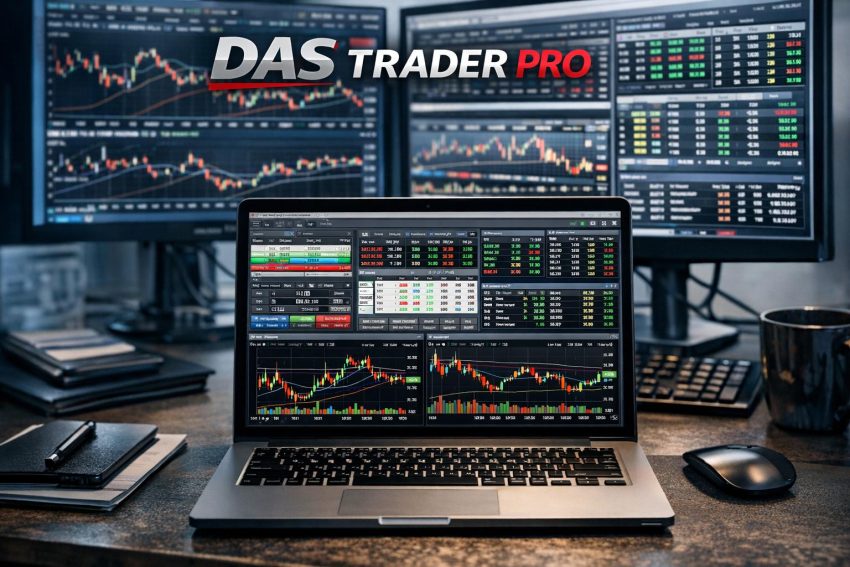
DAS Trader Pro is a direct-access trading platform built mainly for active traders who need rapid order entry, real-time market data, charting, and broker connectivity in one desktop application. Traders commonly use it for US equities, while supported brokers may also provide options trading and access to other products. DAS Trader Pro is not a brokerage account. The connected broker controls custody, account permissions, available order routes, margin terms, commissions, and regulatory requirements.
The platform is closely associated with day trading because its interface places market depth, time and sales, charts, positions, open orders, and order controls within easy reach. Users can connect windows by symbol, assign hotkeys, save workspaces, and send orders through selectable routes. This setup can shorten the mechanical process of entering and managing a trade. It does not make the trade itself safer or more likely to succeed.
DAS Trader Pro has a functional, workstation-style interface rather than the simplified design found in many retail investing applications. New users often need time to learn the montage, route names, account fields, hotkey syntax, order-status messages, and buying-power calculations. Testing those functions before live use is sensible. The platform can execute an incorrect instruction just as efficiently as a correct one.
What DAS Trader Pro Is and How It Works
DAS Trader Pro is trading software developed by DAS Inc. It acts as a connection point between the trader, the brokerage account, market-data providers, and execution venues made available by the broker. The application displays account and market data, accepts order instructions, and transmits those instructions through the connected brokerage arrangement.
This structure matters because two traders can use DAS Trader Pro and still receive different services. One broker may support several direct routes, while another may provide fewer route choices. One account may include real-time Nasdaq and NYSE data, while another starts with delayed quotes until exchange agreements are completed. Short-sale availability, options permissions, margin, and fee schedules can also differ.
DAS Trader Pro should therefore be assessed together with the broker offering it. The software may contain an order type or menu option that the connected account cannot use. The reverse can also happen: a broker may apply its own risk controls, locate process, or route mapping without making every operational detail obvious from the platform interface.
The application is best viewed as a professional-style workstation for retail and proprietary traders. It concentrates several daily tasks in one place:
- Monitoring real-time quotes and market depth
- Reviewing executed trades through time and sales
- Displaying intraday and historical charts
- Sending and modifying orders
- Monitoring positions, buying power, and profit or loss
- Saving layouts for repeated use
The speed of those functions depends on several parties. Local computer performance and internet quality play a role, but so do the broker’s servers, the market-data feed, the selected route, and the exchange or trading venue. A fast desktop application cannot remove delays elsewhere in the order chain.
Who Typically Uses DAS Trader Pro
DAS Trader Pro mainly serves traders who place orders often or require more order control than a standard broker website provides. Common users include equity day traders, short-term momentum traders, scalpers, proprietary trading firms, and traders who monitor several symbols during the same session.
Swing traders can also use the platform, though many of its strongest features relate to intraday execution. Someone placing a few long-term investment orders each year may have little reason to pay for Level 2 data, direct routes, or a specialized desktop terminal. A simpler broker application may cover that use case at a lower cost.
The platform may suit a trader who needs to:
- Enter and cancel orders without opening several menus
- Watch bids, offers, and reported transactions at the same time
- Assign repeatable commands to keyboard shortcuts
- Select among broker-supported routes
- Monitor several positions from a multi-monitor layout
It is less suitable for someone who wants a highly guided interface, depends mainly on fundamental research, or prefers automated portfolio management. DAS Trader Pro supplies trading tools. It does not provide a complete investment research service or decide whether a security should be bought or sold.
Core Interface Components
The Montage Window
The montage is the main order-entry and quote window in DAS Trader Pro. It commonly combines Level 1 quote data, Level 2 market depth, order controls, position details, and account fields for the selected symbol. Depending on the layout, a trader can view the current bid, ask, last price, daily volume, open position, average cost, buying power, and pending orders.
Order controls generally include quantity, price, order type, route, and time in force. The available choices depend on the broker and the permissions attached to the account. The montage may also display buttons or fields for canceling orders, reversing a position, or closing it.
Several montage windows can be used at once. One might remain connected to the main chart, while another tracks a second symbol. This arrangement can save time, but it also creates room for symbol-selection errors. A trader intending to sell one stock can accidentally send the instruction from a montage displaying another stock. Clear window labels and restrained layouts reduce that risk.
Before sending an order, the trader should verify the following fields:
- Symbol: the security attached to the order ticket
- Side: buy, sell, short, or cover
- Quantity: the number of shares or contracts
- Price: the entered limit or stop price, where applicable
- Route: the broker-supported destination or smart route
- Time in force: how long the order remains eligible
- Account: the brokerage account receiving the instruction
A decimal error or an extra zero can materially change the exposure. A market order entered where a limit order was intended can also produce an unexpected fill, particularly outside regular market hours or in a thinly traded security.
Level 2 Market Data
Level 2 presents multiple bid and ask quotations rather than only the highest bid and lowest offer. Entries may be associated with exchanges, electronic communication networks, market makers, or other venue identifiers. Traders use the display to review visible liquidity and price levels near the current market.
Visible size should not be treated as a firm prediction of execution. Orders can be canceled, replaced, or filled before another trader reaches them. Some participants use hidden or reserve orders, and not every expression of trading interest appears in the displayed book. Market depth is therefore a partial record of available quotations, not a complete map of supply and demand.
The usefulness of Level 2 also depends on data entitlements. A trader may receive a consolidated quote without receiving every depth-of-book product offered by an exchange. Real-time exchange data often requires subscriber classification, signed agreements, and monthly fees. Professional subscribers may pay different rates from non-professional subscribers.
Level 2 can help answer practical questions: Is the quoted spread narrow or wide? Is visible size concentrated at one price? Are bids or offers being replaced? Even then, the display should be read alongside reported transactions, volume, volatility, and the trader’s order plan.
Time and Sales
The time and sales window displays reported executions in chronological order. Typical fields include execution time, price, share volume, and a venue or condition code. Traders sometimes filter the display to remove very small prints or highlight transactions above a chosen size.
Color settings may classify executions according to their relationship with the prevailing bid and ask. Those colors are interpretations based on quote conditions; they do not provide certain knowledge of a buyer’s or seller’s intent. A trade shown at the ask may suggest aggressive buying, but the reporting sequence and market structure can complicate that reading.
Time and sales is most useful as a record of completed transactions. It can show whether trades are occurring rapidly, whether reported size is increasing, and whether executions are taking place near the bid or offer. It cannot show unexecuted interest, and it does not forecast the next price movement.
Charts and Technical Indicators
DAS Trader Pro includes chart windows for intraday and longer-period price data. Users can generally change intervals, display volume, add common technical indicators, and place drawing objects on the chart. The exact collection of studies can vary with the software version and broker package.
Intraday traders often keep several time frames open. A one-minute chart may show immediate price action, while a five-minute or daily chart provides broader context. Linking charts to a montage allows the symbol to change across connected windows when a ticker is entered or selected elsewhere.
Common studies may include moving averages, volume-weighted average price, relative strength measurements, and volatility bands. These are mathematical treatments of price or volume data. They do not account for every market factor and cannot guarantee an entry or exit result.
Chart data should also be checked for session settings. A chart that includes premarket and after-hours transactions can look different from one restricted to the regular session. Volume totals, opening prices, and indicator calculations may change according to that choice.
Positions, Orders, and Account Windows
The positions window displays current holdings and may include share quantity, average price, market value, and unrealized profit or loss. The open-orders window lists working instructions, while an order log records accepted, rejected, canceled, and filled orders.
These windows deserve permanent space in an active-trading layout. A chart may show what the market is doing, but the order and position panels show what the account is doing. That distinction becomes especially relevant after partial fills or rapid cancel-and-replace activity.
A trader should not assume that an order disappeared because it is no longer visible in one window. Filters, account selections, and display settings can hide records. When order status is uncertain, the broker’s official records or support desk should be consulted before a duplicate order is entered.
Direct Routing and Order Execution
Direct routing is one of the main reasons active traders consider DAS Trader Pro. Subject to broker support, the order ticket may allow a trader to choose an exchange, electronic communication network, market maker, or broker-managed route. This differs from a basic retail ticket that sends every order through the broker’s default routing process.
Route control can be useful when a trader has a defined execution preference, but it requires knowledge of venue behavior and fees. Route names are not always self-explanatory, and the same label may be handled differently by separate brokers. Some routes accept only certain order types or operate only during stated sessions.
Direct routing does not promise the best fill. Execution depends on the entered price, available liquidity, queue position, venue rules, current volatility, and competing orders. A trader can send an order rapidly and still receive no fill. A partially filled order may remain open for the balance or require cancellation.
Common Order Types
| Order type | Main purpose | Primary execution concern |
|---|---|---|
| Market | Requests prompt execution at available prices | The final price is not guaranteed |
| Limit | Sets a maximum buy price or minimum sale price | The order may remain unfilled |
| Stop | Activates after a stop condition is met | The eventual execution price may differ from the stop |
| Stop-limit | Activates a limit order after the stop condition | The market may move past the limit without a fill |
Other instructions may include trailing stops, pegged orders, reserve orders, and venue-dependent order types. Availability is controlled by the broker, route, trading session, and security. An instruction accepted during regular hours may be rejected during extended hours.
Time-in-Force Instructions
Time in force determines how long an order remains eligible. Common choices include day orders and immediate-or-cancel instructions. Some brokerage arrangements may support good-till-canceled orders or other duration settings.
A day order does not always mean the same session across all routes. Extended-hours handling can depend on the selected destination and broker settings. Traders should verify whether an order is eligible before the opening bell, after the closing bell, or only during the regular session.
Closing the application does not necessarily cancel a working order. Once accepted by the broker or venue, the order may remain active according to its duration. Before leaving the workstation, the trader should inspect open orders and confirm any intended cancellations.
Hotkeys, Scripts, and Rapid Commands
DAS Trader Pro supports configurable hotkeys for order entry and account management. A keyboard command can populate an order ticket, calculate quantity, send an order, cancel working orders, or close a position. For active traders, this can reduce repetitive clicking and create a more consistent entry process.
Hotkeys also introduce operational risk. An accidental keystroke can send a live order, and a poorly written command can use the wrong side, quantity, account, or price reference. Commands copied from online discussions should never be assumed to work correctly. Broker settings and DAS versions can affect how a script behaves.
A good testing process starts by translating each command into plain language. The trader should know exactly what price reference it uses, whether it rounds shares, which route it selects, and whether it transmits immediately. Commands that load an order without transmitting it behave differently from commands that send as soon as the keyboard shortcut is pressed.
Risk-Based Position Sizing
Some traders configure scripts that calculate share quantity from a chosen dollar risk and stop distance. As a simplified example, a trader risking $50 with a planned stop $0.25 from entry might calculate 200 shares before accounting for fees, slippage, and script rules.
The arithmetic is straightforward, but live behavior can be less tidy. Entry slippage changes the distance to the stop. The calculated share count may exceed buying power. The stop order may be rejected, or the entry may receive only a partial fill. A risk-based command should account for such outcomes rather than assuming both orders will fill as planned.
Flatten and Cancel Commands
A flatten command is generally intended to close an open position, often by sending an opposing order. Traders should verify whether the command cancels existing orders before closing the position. If working orders remain active, they can reopen exposure after the apparent exit.
Similarly, a cancel command may cancel all orders, all orders for one symbol, or only orders on one side. The scope should be tested. During a fast market, the difference between canceling one order and every order in the account is not academic.
Short Selling and Share Locates
Short selling requires broker approval and access to borrowable shares. DAS Trader Pro may display short-sale status or connect with a broker’s locate service, but the process varies. A symbol can be easy to borrow at one broker and hard to borrow at another because their lending inventories and counterparties differ.
Hard-to-borrow stocks may require a paid locate before the order can be entered. The locate charge may apply whether or not the trade becomes profitable, and some fees are charged even if the shares are not used. Borrow rates can also change while a position remains open.
Regulatory restrictions can affect order handling. Under the US alternative uptick rule, a qualifying price decline may restrict how short-sale orders are priced. Broker risk controls may impose further conditions. A rejected short order should be read carefully rather than resent repeatedly with altered routes.
Short positions carry risks not present in fully paid long positions. A stock can rise far above the entry price, borrow can be recalled, and the broker may close the position under its account agreement. Corporate actions and overnight gaps can also produce unexpected exposure.
Options Trading Through DAS Trader Pro
Options access depends on the broker, account approval level, market-data subscriptions, and platform configuration. Where supported, traders may view option chains, submit orders, and monitor positions through DAS-related windows. The available functions may not match those of a platform built mainly around multi-leg options analysis.
Options orders require careful contract selection. The underlying symbol, expiration date, strike price, call or put designation, quantity, and opening or closing instruction all matter. Contracts with similar descriptions can have very different prices and risk profiles.
Real-time options quotations normally require the relevant data agreement. Traders should also review whether the displayed profit or loss includes commissions and contract fees. Bid-ask spreads can be wide, particularly in contracts with low trading volume.
Complex multi-leg strategies may require broker-supported tickets or separate order handling. Legging into a spread one order at a time creates execution risk because one side may fill without the other. Anyone using DAS Trader Pro for options should confirm how the broker treats multi-leg orders, exercise, assignment, and expiration.
Buying Power, Margin, and Profit or Loss Displays
DAS Trader Pro can display cash, equity, buying power, realized profit or loss, unrealized profit or loss, and open-position data. These values come through the broker connection and may update at different intervals. Labels can also vary among providers.
Buying power is not the same as cash available for withdrawal. It can reflect margin treatment, unsettled transactions, open orders, concentrated positions, and broker risk rules. An open buy order may reserve buying power even before it fills.
Profit and loss figures should be treated as operational estimates during the trading session. Commissions, exchange charges, regulatory fees, routing rebates or charges, borrow expenses, and later adjustments can change the final account result. The brokerage statement remains the formal account record.
Margin requirements may rise without advance notice during volatile conditions or around corporate events. Brokers generally reserve the right to reduce exposure or liquidate positions under their customer agreements. A green buying-power figure on the screen does not prevent such action.
Pattern Day Trader Rules
US margin accounts may be affected by pattern day trader requirements. The classification generally concerns repeated day trades within a rolling business-day period, though regulatory and broker interpretations should be checked directly with the account provider. Minimum equity rules and trading restrictions can apply after classification.
Cash accounts follow different settlement and funding rules. They may avoid margin-based day trader classification, but traders must monitor settled cash and good-faith funding requirements. DAS Trader Pro displays account data; it does not remove the rules attached to the account type.
Workspaces and Screen Configuration
DAS Trader Pro allows users to arrange charts, montages, scanners, watchlists, positions, open orders, and account panels across one or more monitors. Workspaces can be saved for reuse, allowing a trader to maintain separate layouts for premarket review, regular-session trading, or post-session analysis.
A practical layout gives priority to position and order status. Large charts look attractive on a wide monitor, but a hidden open-orders panel can cause more trouble than a small chart. The main account controls should remain visible without requiring several clicks.
Linked windows can improve efficiency. Selecting a symbol in a watchlist may update a connected chart, montage, and time-and-sales panel. Color-coded links can separate groups of windows. Traders should test those links because an unintended connection can switch the order-entry symbol at an inconvenient moment.
Screen density also matters. Too many flashing panels make it harder to identify what changed. Many experienced users keep the main trading workspace relatively plain: one or two montages, a few charts, Level 2, time and sales, positions, and open orders. Extra tools can sit on another workspace or monitor.
Backing Up Settings
Layouts, hotkeys, watchlists, and other configuration files should be backed up before software updates or computer replacement. Screenshots can also help reconstruct a layout. A written copy of hotkey commands is useful because it allows each instruction to be reviewed independently of the platform file.
After restoring settings, every account field and hotkey should be checked again. A command linked to an old route or account reference may not behave correctly after a broker change.
Scanners, Watchlists, and Alerts
Depending on the package, DAS Trader Pro may include market scanning, watchlist, and alert functions. Traders use these tools to monitor symbols that meet chosen price, volume, or movement conditions. Scanner availability and data coverage can vary by provider.
A scanner result is only a starting point. A stock can appear because of a brief trade, a temporary volume burst, or a wide spread. Before entering an order, the trader still needs to review liquidity, news, volatility, and the applicable risk plan.
Watchlists are useful for separating groups such as earnings stocks, high-volume names, open positions, and longer-term candidates. Clear naming helps prevent confusion, especially when the same symbol appears in several lists.
Price and volume alerts can reduce the need to stare at every chart. Alerts can also fire late or repeat during rapid price changes, depending on settings and data timing. They should prompt review rather than act as an automatic trading signal unless a tested order process has been configured.
Installation, Connectivity, and Hardware
DAS Trader Pro is commonly used in a Windows desktop environment. Users should obtain the installer and login details from their broker or an authorized provider. Server settings, account credentials, and software versions must match the brokerage arrangement.
A modern computer with adequate memory and processor capacity is generally preferable when running many charts and data windows. Multiple monitors increase screen space but are not required. Stable performance matters more than display count.
A wired internet connection can reduce local Wi-Fi issues, though it cannot prevent outages at the internet provider, broker, data vendor, or exchange. Traders should know how to distinguish a frozen display from a stable market. A timestamp, test quote, or broker status message can help identify stale data.
Backup Access
Active traders often keep a second access method available, such as a broker mobile application, web portal, backup computer, or telephone order desk. Contact numbers and account verification details should be stored where they can be reached during an outage.
The backup process should be tested before it is needed. Logging into a mobile application for the first time while holding an unmanaged position is poor timing. The trader should know how to view positions, cancel orders, and contact the broker without relying on the primary workstation.
A backup connection does not guarantee immediate action. Mobile data can fail, phone queues can be slow, and account verification can take time. Position size should account for the possibility that an exit cannot be entered at the intended moment.
Paper Trading and Pre-Live Testing
Simulation allows users to learn DAS Trader Pro without exposing live capital. It is useful for testing window links, hotkeys, order syntax, chart settings, and account displays. Repeated practice can make routine actions more consistent.
Paper fills often differ from live fills. A simulator may not reproduce queue position, partial fills, route behavior, share locates, or slippage during rapid movement. It may fill an order at a displayed price even when little real liquidity was available.
A structured test should include market, limit, stop, and cancel-replace actions where supported. The user should also test partial-fill scenarios, rejected orders, symbol changes, and commands intended to close positions. Each result should match the written purpose of the command.
Moving from simulation to live trading should be treated as a separate testing stage. Small share size makes it easier to check commissions, routing behavior, data timing, and order messages without taking large account exposure. Size can be reconsidered only after live mechanics have been verified.
Fees and the Full Cost of Use
The cost of DAS Trader Pro depends on the broker or provider. Charges may include a monthly platform fee, exchange market-data subscriptions, commissions, routing fees, options contract charges, regulatory fees, and short-borrow expenses. Some brokers reduce the software fee after a stated level of trading activity.
| Cost category | What to review |
|---|---|
| Platform access | Monthly charge, waiver conditions, and cancellation terms |
| Market data | Exchange packages, professional status, and options data |
| Commissions | Per-share, per-trade, or per-contract pricing |
| Routing | Venue charges, rebates, and broker markups |
| Short selling | Locate charges, borrow rates, and recall policies |
| Account administration | Withdrawal, inactivity, wire, and statement fees |
Low advertised commissions do not always produce the lowest trading cost. A trader who crosses wide spreads, pays frequent locate fees, or receives poor fills can spend far more on execution than on the stated commission. Broker comparisons should include route access, data quality, support availability, margin policy, and statement transparency.
Security and Account Controls
Trading credentials should use a strong password that is not shared with any other service. Where the broker offers multi-factor authentication, it should be enabled. The software should come from the broker or another authorized distribution source.
Remote-access applications deserve caution. They can give another person control of the trading computer, including the ability to view account data or enter orders. Shared computers create similar concerns because saved credentials and configuration files may expose the account.
Users should inspect positions and working orders before ending a session. Logging out does not reliably cancel orders already accepted by the broker or venue. If an order remains in an uncertain state, the trader should contact the broker rather than assume it expired.
Regular statement review can identify unexpected fees, incorrect trade records, or unauthorized activity. Platform displays are useful during the session, but broker confirmations and account statements provide the formal record.
Advantages and Practical Trade-Offs
DAS Trader Pro offers a concentrated set of tools for active order management. Its montage, Level 2 display, time and sales, linked charts, hotkeys, and route controls can support traders who need to monitor and act on short-term price activity.
The platform also demands preparation. Its interface can feel dense, and broker-dependent settings make generic instructions unreliable. Market-data fees and platform charges may be hard to justify for infrequent trading. Hotkeys save time but can increase the speed and scale of an error.
The main advantages include rapid order entry, flexible workspaces, detailed account monitoring, and access to direct routes where the broker supports them. The main trade-offs are setup time, operational risk, recurring costs, and dependence on several technical providers.
DAS Trader Pro does not provide an inherent trading edge. It can reduce mouse clicks and place account data in a practical format, but profitability still depends on trade selection, execution discipline, cost control, and risk management.
Assessing Whether DAS Trader Pro Fits a Trading Method
A trader considering DAS Trader Pro should begin with the required workflow rather than the software’s reputation. Someone who trades highly liquid US stocks several times a day may value hotkeys, montage windows, and route selection. Someone who trades infrequently may gain little from the added cost and setup.
The connected broker should be evaluated at the same time. Route availability, market-data packages, short inventory, options permissions, margin rules, and customer support can materially change the experience. A feature shown in a DAS manual may not be enabled for every account.
Before live use, the trader should confirm data status, account selection, quantity settings, route behavior, and order-duration rules. Hotkeys should be tested individually, and backup access should be ready. The first live orders should use restrained size while account displays and execution reports are checked.
DAS Trader Pro can serve as an efficient trading workstation for users who need detailed market information and fast order controls. Its value comes from correct configuration and disciplined operation, not from the software name alone. The account holder remains responsible for every submitted instruction, every open position, and the financial result.